Use the Navigation pane in Word To go to a page or a heading in a Word document without scrolling, use the Navigation pan...
Use the Navigation pane in Word
To go to a page or a heading in a Word document without scrolling, use the Navigation pane.
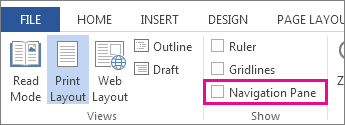
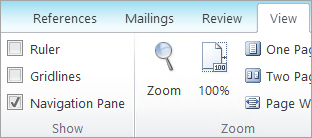
To open the Navigation pane, press Ctrl+F, or click View > Navigation Pane.
Browse by headings
If you've applied heading styles to the headings in the body of your document, those headings appear in the Navigation pane. The Navigation pane doesn't display headings that are in tables, text boxes, or headers or footers.
-
In the Navigation pane, click the Headings tab.
-
To go to a heading in your document, click that heading in the Navigation pane.
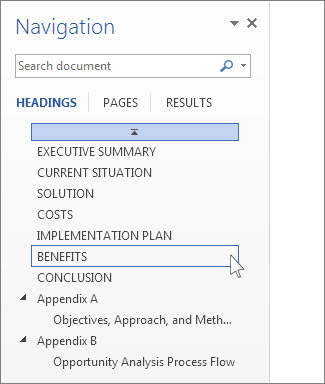
Tip: To show or hide the subheadings under a heading, click the arrow next to the heading.
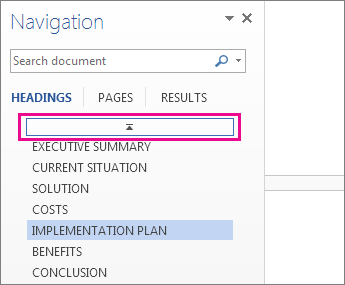
If you scroll through your document, Word highlights the heading in the Navigation pane to show you where you are. To go back to the top, click Jump to the beginning.
Browse by page
Click Pages. Then click a thumbnail image to go to that page.
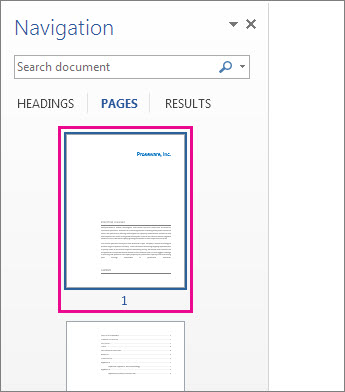
When you do scroll through your document, Word highlights the page you're on in the Navigation pane to show you where you are.
Search in your document
-
In the search box at the top of the Navigation pane, type the text that you want to find.
-
Click a result to see it in your document, or browse through all the results by clicking the up and down arrows.
Reorganize your document
You can move parts of your document around by moving them in the Navigation pane. You can also change the level of headings, and you can add new headings.
-
In the Navigation pane, click the Headings tab.
-
Do any of the following:
-
To move part of the document, click the heading and drag it to a new location.
-
To change the heading's level or add a heading, right-click the heading, and then choose the action you want.

Note: If a document contains regions that are protected, you might be unable to drag a section beyond the last protected region.
-
To open the Navigation pane, press Ctrl+F, or click View > Navigation Pane.
Browse by headings
If you've applied heading styles to the headings in the body of your document, those headings appear in the Navigation pane. The Navigation pane doesn't display headings that are in tables, text boxes, or headers or footers.
-
In the Navigation pane, click the Browse the headings in your document tab.
-
To go to a heading in your document, click that heading in the Navigation pane.

Tip: To show or hide the subheadings under a heading, click the arrow next to the heading.
If you scroll through your document, Word highlights the heading in the Navigation pane to show you where you are.
Browse by page
Click the Browse the pages in your document tab. Then click a thumbnail image to go to that page.
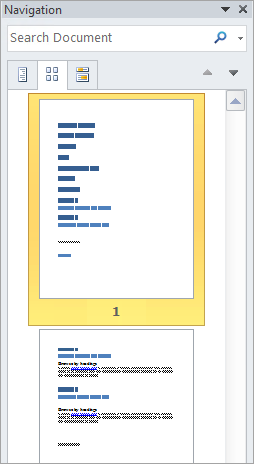
When you do scroll through your document, Word highlights the page you're on in the Navigation pane to show you where you are.
Search in your document
-
In the search box at the top of the Navigation pane, type the text that you want to find.
-
Click a result to see it in your document, or browse through all the results by clicking the Next Search Result and Previous Search Result arrows.
Reorganize your document
You can move parts of your document around by moving them in the Navigation pane. You can also change the level of headings, and you can add new headings.
-
In the Navigation pane, click the Browse the headings in your document tab.
-
Do any of the following:
-
To move part of the document, click the heading and drag it to a new location.
-
To change the heading to a higher or lower heading level, right-click the heading, and then click Promote or Demote.
-
To add a heading, click New Heading Before or New Heading After.
Note: If a document contains regions that are protected, you might be unable to drag a section beyond the last protected region.
-
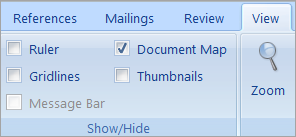
The Navigation pane in Word 2007 is called the Document Map.
To open the Document Map, click View > Document Map.
Browse by headings
If you've applied heading styles to the headings in the body of your document, those headings appear in the Document Map. The Document Map doesn't display headings that are in tables, text boxes, or headers or footers.
-
In the Document Map, click the a heading to jump to that location in your document.
Tip: To show or hide the subheadings under a heading, click the plus or minus sign next to the heading.
If you scroll through your document, Word highlights the heading in the Document Map to show you where you are.
Browse by page
Click the arrow next to Document Map, and then click Thumbnails. Then click a thumbnail image to go to that page.
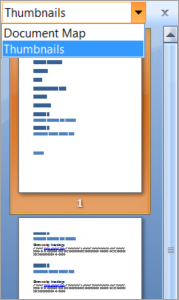
When you do scroll through your document, Word highlights the page you're on in the Document Map to show you where you are.


COMMENTS