Animate text, objects, and charts in PowerPoint for Mac You can animate the text, objects, and charts in your presentatio...
Animate text, objects, and charts in PowerPoint for Mac
You can animate the text, objects, and charts in your presentation to give them visual effects, including entrances, exits, changes in size or color, and even movement. You can use any animation effect by itself or combine multiple effects together. For instance, you can make a line of text fly in from the left while it grows in size by applying both a Fly In entrance effect and a Grow/Shrink emphasis effect.
Note: Transitions are another way to add visual effects when moving from one slide to another in a slide show. For more information about how to add transitions between slides, see Add, edit, or remove transitions.
Add animation to text,an object, or a chart
-
Select the item that you want to animate, click the Animations tab, and then choose one of the following:
If you want an item to
Click here on the Animations tab of the ribbon
Appear on the slide

(Click the right arrow to see more choices)
Receive emphasis

Exit the slide

Follow a defined path

You can apply more than one animation to a single object. Simply select the object again and apply an additional effect.
Each animation effect is represented on the slide by a number  next to the object, which indicates the order that it will play in. If two animation effects are set to play at the same time, they are represented by a numbered stack
  .
.
Edit animation effects
To change, remove, or reorder animation effects:
-
Select the slide you want, and then on it, click the number of the animated effect you want to revise.
-
The Animations pane at the right shows all the animations on the slide.
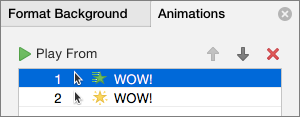
Here you can:
-
Reorder or remove animations in Play From
-
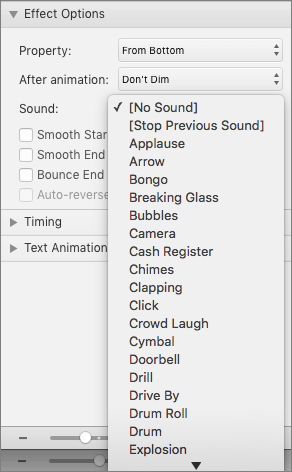
Change how the animation works, or add a sound in Effect Options
-
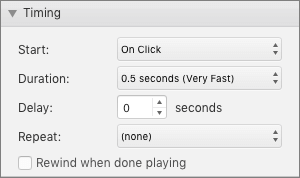
Change how the animation starts and how long it lasts in Timing
-
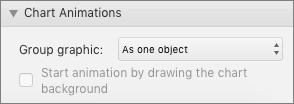
To display a blank chart at the beginning of the animation, with the animation effect selected in the Animation Pane, under Chart Animations, select the Start animation by drawing the chart background check box.
-
Choose Play From to preview your changes.
See also
Animate text and objects with motion paths
Add animation effects to text, an object, or a chart
-
Select the text, object, or chart that you want to apply an animation effect to.
-
Do one of the following:
To animate how the text, object, or chart
Do this
Enters the slide
On the Animations tab, under Entrance Effects, click the animation that you want.
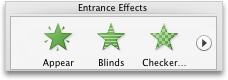
To see more animations, point to an animation effect, and then click
 .
.Are emphasized on the slide
On the Animations tab, under Emphasis Effects, click the animation that you want.
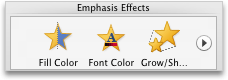
To see more animations, point to an animation effect, and then click
.Exits the slide
On the Animations tab, under Exit Effects, click the animation that you want.
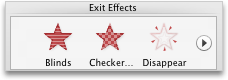
To see more animations, point to an animation effect, and then click
.Follows a motion path on the slide
On the Animations tab, under Motion, click Paths, and then click the animation that you want.

Movie or audio play, pause, or stop
Note: You must select the audio or video object on the slide to see the animation effects that are available.
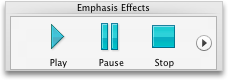
On the Animations tab, under Emphasis Effects, click Play, Pause, or Stop.
-
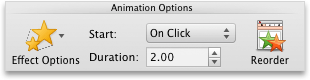
To vary the animation, such as the direction the animated object moves, under Animation Options, click Effect Options, and then choose the variation that you want.
Tips:
-
Each animation effect is represented on the slide by a number
next to the object, which indicates the order that it will play in. If two animation effects are set to play at the same time, they are represented by a numbered stack . -
You can change other animation options, such as the speed or how the animations starts. For more information, see Change animation order, speed, or how it starts.
-
To preview all animation effects on the slide, on the Animations tab, under Preview, click Play.
-
To display a blank chart at the beginning of the animation, with the animation effect selected in the Animation Pane, under Chart Animations, select the Start animation by drawing the chart background check box.
What if "Effect Options" isn't available?
-
The Effect Options button may be grayed out because there are no effect options available for the animation effect or type of object being animated. But before you assume that is the case, make sure the animation number
is selected, rather than the object, and then try clicking Effect Options again.
You can apply multiple animation effects to the same object. The animations can occur one after the other, or at the same time. The following steps explain how to make an object fly in from the left while at the same time growing in size.
Apply multiple animations to text, a single object, or chart
-
Select the text, object, or chart that you want to apply an animation effect to.
-
On the Animations tab, under Entrance Effects, click Fly In.
To see more animations, point to an animation effect, and then click
. -
Select the text, object, or chart again.
-
On the Animations tab, under Emphasis Effects, click Grow/Shrink.
To see more animations, point to an animation effect, and then click
. -
Select the animation effect that you just added on the slide.
Note: Each animation effect is represented on the slide by a number
next to the object, which indicates the order that it will play in. -
On the Animations tab, under Animation Options, on the Start pop-up menu, click With Previous.
Tip: To preview all animation effects on the slide, on the Animations tab, under Preview, click Play.
You can view the list of animations on the slide to modify the order they play in, change advanced options, or remove an animation.
View a list of animations on a slide
-
In the navigation pane, select the slide with the animation effects that you want to view.
-
On the View menu, click Normal.
-
In the top of the navigation pane, click the Slides
 tab, and then click a slide. Depending on the width of the navigation pane, you will either see the
  and
and  named tabs or the Slides and Outline
  icon tabs.
-
-
On the Animations tab, under Animation Options, click Reorder.
Add a sound to an animation
-
In the navigation pane, select the slide that contains the animation effect that you want to change.
-
Click in the slide, and then on the Animations tab, under Animation Options, click Reorder.
-
Under Animation order, click the animation effect.
-
Under Effect Options, on the Sound pop-up menu, click a sound effect.
-
To preview all animation effects on the slide, on the Animations tab, under Preview, click Play.

Change the order of animation effects on a slide
-
In the navigation pane, select the slide that contains the animation effect that you want to change.
How to select slides in the navigation pane
-
On the View menu, click Normal.
-
In the top of the navigation pane, click the Slides
tab, and then click a slide. Depending on the width of the navigation pane, you will either see the and named tabs or the Slides and Outline icon tabs.
-
-
On the Animations tab, under Animation Options, click Reorder.
-
Under Animation order, click an animation effect.
-
To move the animation effect, click the up arrow or the down arrow.
Tip: To preview all animation effects on the slide, on the Animations tab, under Preview, click Play.
Change the speed of the animation effect
The speed of the animation effect is determined by how long the effect plays, or the duration.
-
In the navigation pane, select the slide that contains the animation effect that you want to change, and then click the Animation tab.
How to select slides in the navigation pane
-
On the View menu, click Normal.
-
In the top of the navigation pane, click the Slides
tab, and then click a slide. Depending on the width of the navigation pane, you will either see the and named tabs or the Slides and Outline icon tabs.
-
-
On the slide, select the animation effect that you want to change.
Tips:
-
Each animation effect is represented on the slide by a number
next to the object, which indicates the order that it will play in. If two animation effects are set to play at the same time, they are represented by a numbered stack . -
To select an animation effect that is in a numbered stack
, you must view the full list of animation effects on the slide. On the Animations tab, under Animation Options, click Reorder, and then click the animation that you want.
-
-
On the Animations tab, under Animation Options, in the Duration box, enter the number of seconds that you want the animation effect to last.
Tip: To preview all animation effects on the slide, on the Animations tab, under Preview, click Play.
Change how an animation effect starts
-
In the navigation pane, select the slide that contains the animation effect that you want to change, and then click the Animation tab.
How to select slides in the navigation pane
-
On the View menu, click Normal.
-
In the top of the navigation pane, click the Slides
tab, and then click a slide. Depending on the width of the navigation pane, you will either see the and named tabs or the Slides and Outline icon tabs.
-
-
On the slide, select the animation effect that you want to change.
Tips:
-
Each animation effect is represented on the slide by a number
next to the object, which indicates the order that it will play in. If two animation effects are set to play at the same time, they are represented by a numbered stack . -
To select an animation effect that is in a numbered stack
, you must view the full list of animation effects on the slide. On the Animations tab, under Animation Options, click Reorder, and then click the animation that you want.
-
-
On the Animations tab, under Animation Options, on the Start pop-up menu, do one of the following:
| To start the animation effect | Click |
| When you click the slide | On Click |
| At the same time as the previous animation effect in the list (one click starts two or more animation effects at the same time) | With Previous |
| Immediately after the previous animation effect in the list finishes playing (no additional click is required to make the next animation effect start) | After Previous |
To preview all animation effects on the slide, on the Animations tab, under Preview, click Play.
See also
Animate text and objects with motion paths
Change or remove animation effects


COMMENTS